WFS Guide
WFS query Guide step-by-step
The following guide will help you understand, Step-by-step the best practices of how to work with the Map Colonies WFS Sevice and how to query layer parts data.
WFS querying capabilities Reference is here
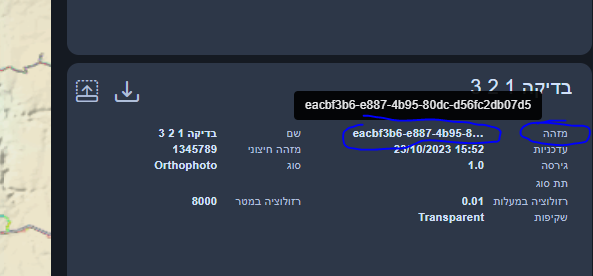
Note: In order to get the layer id (mc:id) you have the following options:
- Open map-colonies catalog application and locate the required layer
- Query all records via CSW GetRecords operation and search it in the result response
Flow diagram
The following flow will show you one of our main use-case's
Query Catalog Service (Step 1)
Query RASTER CSW catalog service to find item(s) according to desired filter example are here.
Pay attention to set the following parameter 'outputSchema="http://schema.mapcolonies.com/raster"' in order to get full catalog data
There are a few ways to acquire the productId, for example:
- Specific Layer
- Fetch All Layers (Pagination)
To fetch a specific layer you need to aquire 2 properties values:
productTypeproductIdTo get unique product when you already have the productType and productId you can use the following query (both can be coppied from our catalog app, for example for Best Orthophoto use the following)
POST Request
url:
'<RASTER-CATALOG-SERVICE_URL>/csw'
body (XML):
<?xml version="1.0" encoding="UTF-8"?>
<csw:GetRecords xmlns:csw="http://www.opengis.net/cat/csw/2.0.2" service="CSW" maxRecords="1"  startPosition="1" outputSchema="http://schema.mapcolonies.com/raster" version="2.0.2" xmlns:mc="http://schema.mapcolonies.com/raster" >
  <csw:Query typeNames="mc:MCRasterRecord">
   <csw:ElementSetName>full</csw:ElementSetName>
    <csw:Constraint version="1.1.0">
      <Filter xmlns="http://www.opengis.net/ogc">
        <And>
          <PropertyIsEqualTo>
            <PropertyName>mc:productType</PropertyName>
            <Literal>OrthophotoBest</Literal>
          </PropertyIsEqualTo>
          <PropertyIsEqualTo>
            <PropertyName>mc:productId</PropertyName>
            <Literal>ORTHOPHOTO_MOSAIC_BASE</Literal>
          </PropertyIsEqualTo>
        </And>
      </Filter>
    </csw:Constraint>
  </csw:Query>
</csw:GetRecords>
You can enquire all raster products, use maxRecords and startPosition for pagination:
POST Request
url:
'<RASTER-CATALOG-SERVICE_URL>/csw'
body (XML):
<?xml version="1.0" encoding="UTF-8"?>
<csw:GetRecords xmlns:csw="http://www.opengis.net/cat/csw/2.0.2" service="CSW" maxRecords="1" startPosition="1" outputSchema="http://schema.mapcolonies.com/raster" version="2.0.2" xmlns:mc="http://schema.mapcolonies.com/raster" >
  <csw:Query typeNames="mc:MCRasterRecord">
   <csw:ElementSetName>full</csw:ElementSetName>
    <csw:Constraint version="1.1.0">
      <Filter xmlns="http://www.opengis.net/ogc">
        <And>
          <PropertyIsEqualTo>
            <PropertyName>mc:productId</PropertyName>
            <Literal>productId</Literal>
          </PropertyIsEqualTo>
          <PropertyIsEqualTo>
            <PropertyName>mc:productType</PropertyName>
            <Literal>productType</Literal>
          </PropertyIsEqualTo>
        </And>
      </Filter>
    </csw:Constraint>
  </csw:Query>
</csw:GetRecords>
You will get GetRecords XML Response with product metadata.
Response example
  <?xml version="1.0" encoding="UTF-8" standalone="no"?>
  <!-- pycsw 2.7.dev0 -->
  <csw:GetRecordsResponse xmlns:csw="http://www.opengis.net/cat/csw/2.0.2" xmlns:dc="http://purl.org/dc/elements/1.1/" xmlns:dct="http://purl.org/dc/terms/" xmlns:gmd="http://www.isotc211.org/2005/gmd" xmlns:gml="http://www.opengis.net/gml" xmlns:ows="http://www.opengis.net/ows" xmlns:xs="http://www.w3.org/2001/XMLSchema" xmlns:xsi="http://www.w3.org/2001/XMLSchema-instance" xmlns:mc="http://schema.mapcolonies.com/raster" version="2.0.2" xsi:schemaLocation="http://www.opengis.net/cat/csw/2.0.2 http://schemas.opengis.net/csw/2.0.2/CSW-discovery.xsd">
      <csw:SearchStatus timestamp="2022-02-15T15:08:58Z"/>
      <csw:SearchResults numberOfRecordsMatched="2" numberOfRecordsReturned="1" nextRecord="2" recordSchema="http://schema.mapcolonies.com/raster" elementSet="full">
          <mc:MCRasterRecord>
              <mc:classification>4</mc:classification>
              <mc:creationDateUTC>2022-02-13T13:04:23Z</mc:creationDateUTC>
              <mc:description>World Wide 2020</mc:description>
              <mc:footprint>{"type":"Polygon","coordinates":[[[-180,-90],[-180,90],[180,90],[180,-90],[-180,-90]]]}</mc:footprint>
              <mc:minHorizontalAccuracyCE90>3</mc:minHorizontalAccuracyCE90>
              <mc:id>3b3164a7-280d-4392-a82f-d60a76e69092</mc:id>
              <mc:ingestionDate>2022-02-13T13:04:23Z</mc:ingestionDate>
              <mc:insertDate>2022-02-13T13:04:41Z</mc:insertDate>
              <mc:mimeType>image/jpeg</mc:mimeType>
              <mc:links scheme="WMS" name="ORTHOPHOTO_MOSAIC_BASE" description="">'<YOUR_MAPPROXY_URL>/service?REQUEST=GetCapabilities'</mc:links>
              <mc:links scheme="WMS_BASE" name="ORTHOPHOTO_MOSAIC_BASE" description="">'<YOUR_MAPPROXY_URL>/wms'</mc:links>
              <mc:links scheme="WMTS" name="ORTHOPHOTO_MOSAIC_BASE" description="">'<YOUR_MAPPROXY_URL>/wmts/1.0.0/WMTSCapabilities.xml'</mc:links>
              <mc:links scheme="WMTS_KVP" name="ORTHOPHOTO_MOSAIC_BASE" description="">'<YOUR_MAPPROXY_URL>/service?REQUEST=GetCapabilities&SERVICE=WMTS'</mc:links>
              <mc:links scheme="WMTS_BASE" name="ORTHOPHOTO_MOSAIC_BASE" description="">'<YOUR_MAPPROXY_URL>/wmts'</mc:links>
              NEW: -----> <mc:links scheme="WFS" name="ORTHOPHOTO_MOSAIC_BASE" description="">'<YOUR_WFS_URL>/wfs?request=GetCapabilities'</mc:links> <-----
              <mc:maxResolutionMeter>0.1</mc:maxResolutionMeter>
              <mc:producerName>IDFMU</mc:producerName>
              <mc:productBBox>-180,-90,180,90</mc:productBBox>
              <mc:productId>ORTHOPHOTO_MOSAIC_BASE</mc:productId>
              <mc:productName>אורתופוטו מתעדכן</mc:productName>
              <mc:productType>OrthophotoBest</mc:productType>
              <mc:productVersion>1.0</mc:productVersion>
              <mc:region>World</mc:region>
              <mc:maxResolutionDeg>0.000171661376953125</mc:maxResolutionDeg>
              <mc:sensors>UNDEFINED</mc:sensors>
              <mc:imagingTimeEndUTC>2020-05-21</mc:imagingTimeEndUTC>
              <mc:imagingTimeBeginUTC>2020-05-21</mc:imagingTimeBeginUTC>
              <mc:SRS>4326</mc:SRS>
              <mc:SRSName>WGS84GEO</mc:SRSName>
              <mc:transparency>OPAQUE</mc:transparency>
              <mc:type>RECORD_RASTER</mc:type>
              <mc:updateDateUTC>2022-02-13T13:03:07Z</mc:updateDateUTC>
              <ows:BoundingBox crs="urn:x-ogc:def:crs:EPSG:6.11:4326" dimensions="2">
                  <ows:LowerCorner>-180.0 90.0</ows:LowerCorner>
                  <ows:UpperCorner>180.0 90.0</ows:UpperCorner>
              </ows:BoundingBox>
          </mc:MCRasterRecord>
      </csw:SearchResults>
  </csw:GetRecordsResponse>
Get layer URI (Step 2)
In the catalog response from the first step, look for the links tags.
Each layer has it's own links, so make sure to filter for your wanted layer
</mc:links>
<mc:links scheme="WFS" name="ORTHOPHOTO_MOSAIC_BASE" description="">
'<YOUR_WFS_URL>/wfs?request=GetCapabilities'
</mc:links>
You need to save the [desired_layer_identifier] value for later use.
Query WFS layer GetCapabilities (Step 3)
Now you need to make an WFS GetCapabilities query request for the desired layer.
Identify the WFS GetCapabilities from above step:
<mc:links scheme="WFS" name="[desired_layer_identifier]" description="">
  '<RASTER-SERVING-SERVICE_URL>/wfs'
</mc:links>
Make a GET request to this link. The response contains the details of all available layers in following format:
<ows:Operation name="DescribeFeatureType">
    <ows:DCP>
        <ows:HTTP>
            <ows:Get xlink:href="https://<YOUR_WFS_URL>/wfs"/>
            <ows:Post xlink:href="https://<YOUR_WFS_URL>/wfs"/>
        </ows:HTTP>
    </ows:DCP>
    <ows:Parameter name="outputFormat">
        <ows:AllowedValues>
            <ows:Value>application/gml+xml; version=3.2</ows:Value>
        </ows:AllowedValues>
    </ows:Parameter>
</ows:Operation>
<ows:Operation name="GetFeature">
    <ows:DCP>
        <ows:HTTP>
            <ows:Get xlink:href="https://<YOUR_WFS_URL>/wfs"/>
            <ows:Post xlink:href="https://<YOUR_WFS_URL>/wfs"/>
        </ows:HTTP>
    </ows:DCP>
</ows:Operation>
Query WFS operations (Step 4)
As you can see, above xml response represents links to wfs operations query names (GetFeature/DescribeFeature) Now all you have to do is query the desired WFS operation link by those references that we mantioned.
<ows:Operation name="DescribeFeatureType">
Reference: DescribeFeatureType
<ows:Operation name="GetFeature">
Reference: GetFeature